Apple Siri AI Tips: Screen Actions, Mail Management and Custom Shortcuts
Siri AI’s value is in the work it can do across apps
Siri has long been useful for quick commands such as setting a timer or sending a text. Apple’s newer Siri AI points to a broader role: it can work with information on screen, search personal data in Mail, and turn requests into actions across the iPhone and Mac. The practical shift is less about longer conversations and more about reducing the steps between finding something and doing something with it.
Apple says its Foundation Models run on device and on Apple servers through Private Cloud Compute. The assistant can also draw on Google’s technology. Its answers are typically brief, which suits quick tasks, though users who prefer voice responses or want more advanced help have options to tune the experience. These settings and integrations are spread across iOS 27 and macOS 27, so several of the most useful capabilities aren’t obvious from the main Siri interface.
Choose whether Siri speaks or stays quiet
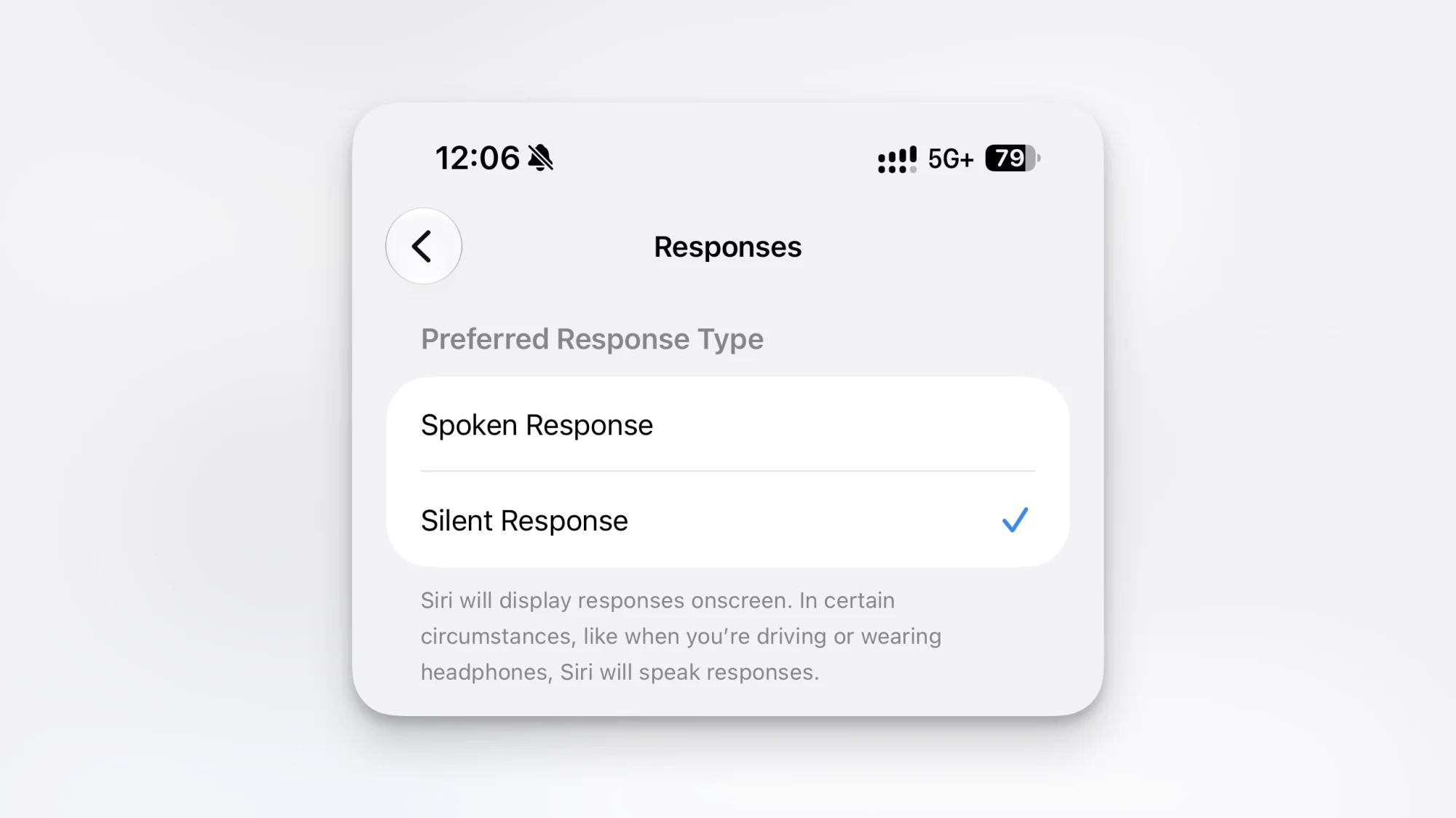
When a spoken question gets a spoken answer, that can be inconvenient in a quiet office or when you simply want to scan the result. Siri’s Silent Response setting keeps answers on screen whether you typed the request or said it aloud. Find it under Settings > Siri > Responses, then select Silent Response. It’s a small preference, but it changes Siri from a voice-first assistant into a quieter, text-friendly tool.
Tune Siri’s voice on supported devices

For people who do want spoken replies, Siri AI offers controls for both pace and expressiveness. The Expressive Voice feature is available on iPhone 17 Pro and later, iPhone Air, and Macs with an M3 processor or later and at least 12GB of RAM. Go to Settings > Siri > Voice to adjust the pace, choose among the available voices, and move the Expressivity slider. That last control can make the voice sound brighter and more enthusiastic rather than flat.
Give Siri context from what’s on screen
Visual Intelligence makes the current screen useful context for a request. On iPhone, select text, touch and hold it, and choose Ask Siri. On Mac, right-click selected text or a file and choose Ask Siri from the menu. You can also open Siri while viewing something and ask about it directly. A photo of a cafe, for example, can prompt a question about its location or a request to open it in Maps; a film scene can prompt Siri to identify the movie or show.
This kind of screen-aware assistance changes the interaction: users don’t have to describe or copy as much of what they’re looking at. The assistant can interpret the visible item and suggest a related action. That makes it especially useful when a page, image, or document already contains the details needed for the next step.
Use High Quality for photo cleanup

Apple’s Clean Up tool in Photos can remove unwanted objects, and the article reports better results when image processing uses Apple’s server models. The difference depends on selecting High Quality instead of leaving the tool in Auto mode. Open a photo, tap Edit, choose Tools > Clean Up, and switch the quality option at the top. Brush over or tap the object, then tap Clean Up. Processing may take a little time; tap Done to save the edited image. The reported improvement includes more reliable object removal and better handling of shadows.
Turn a photographed schedule into calendar entries
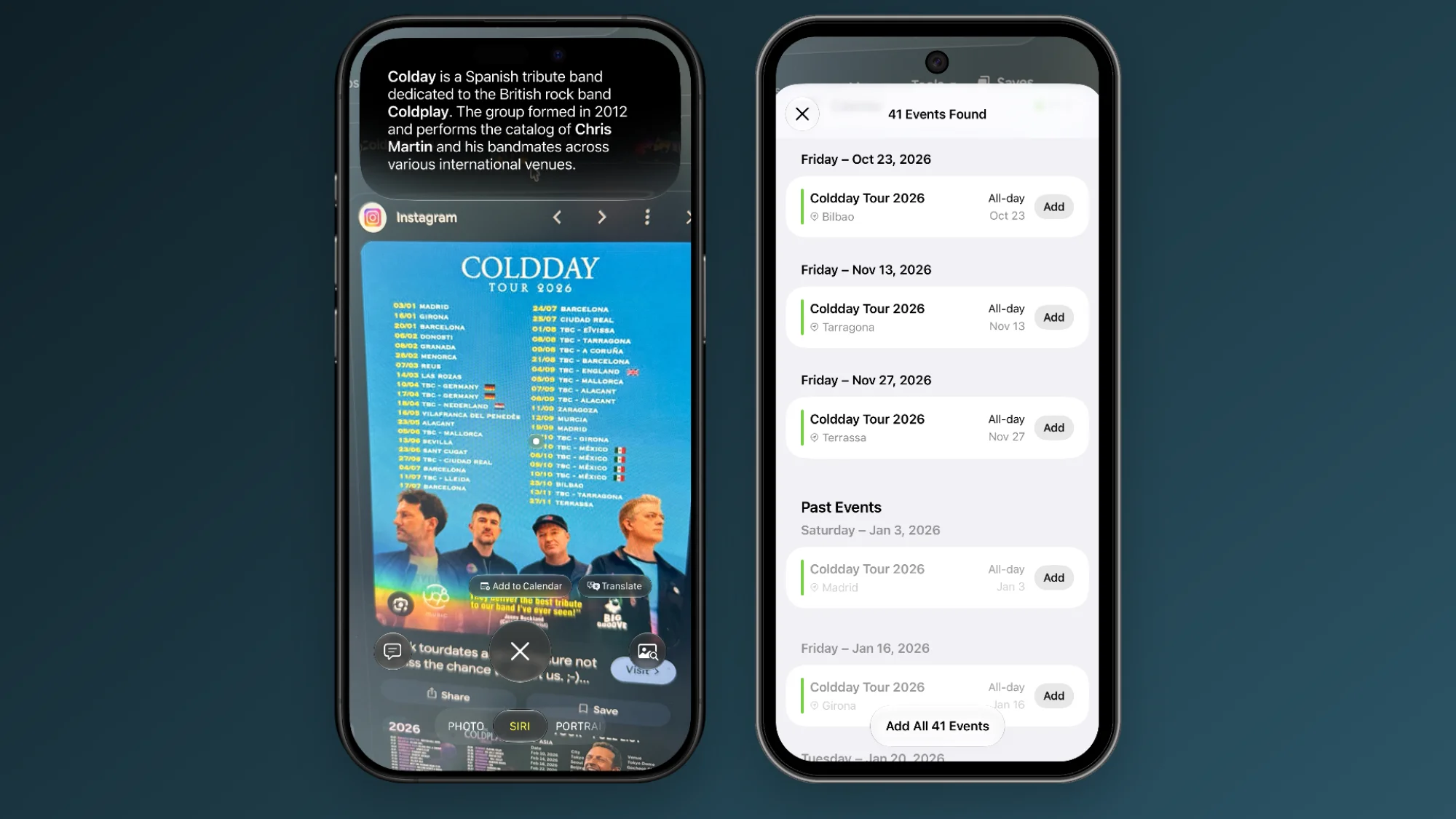
Entering a long schedule one event at a time is tedious. With Visual Intelligence in iOS 27, an iPhone camera view or screenshot of a schedule can provide the source for several Calendar events. Tap Add to Calendar after capturing the schedule; Siri identifies the events and offers to add them individually or all at once. A recurring sports practice schedule or a weekly class timetable is the sort of input where this could save meaningful setup time, while still letting you review entries before they’re added.
Manage Mail through requests
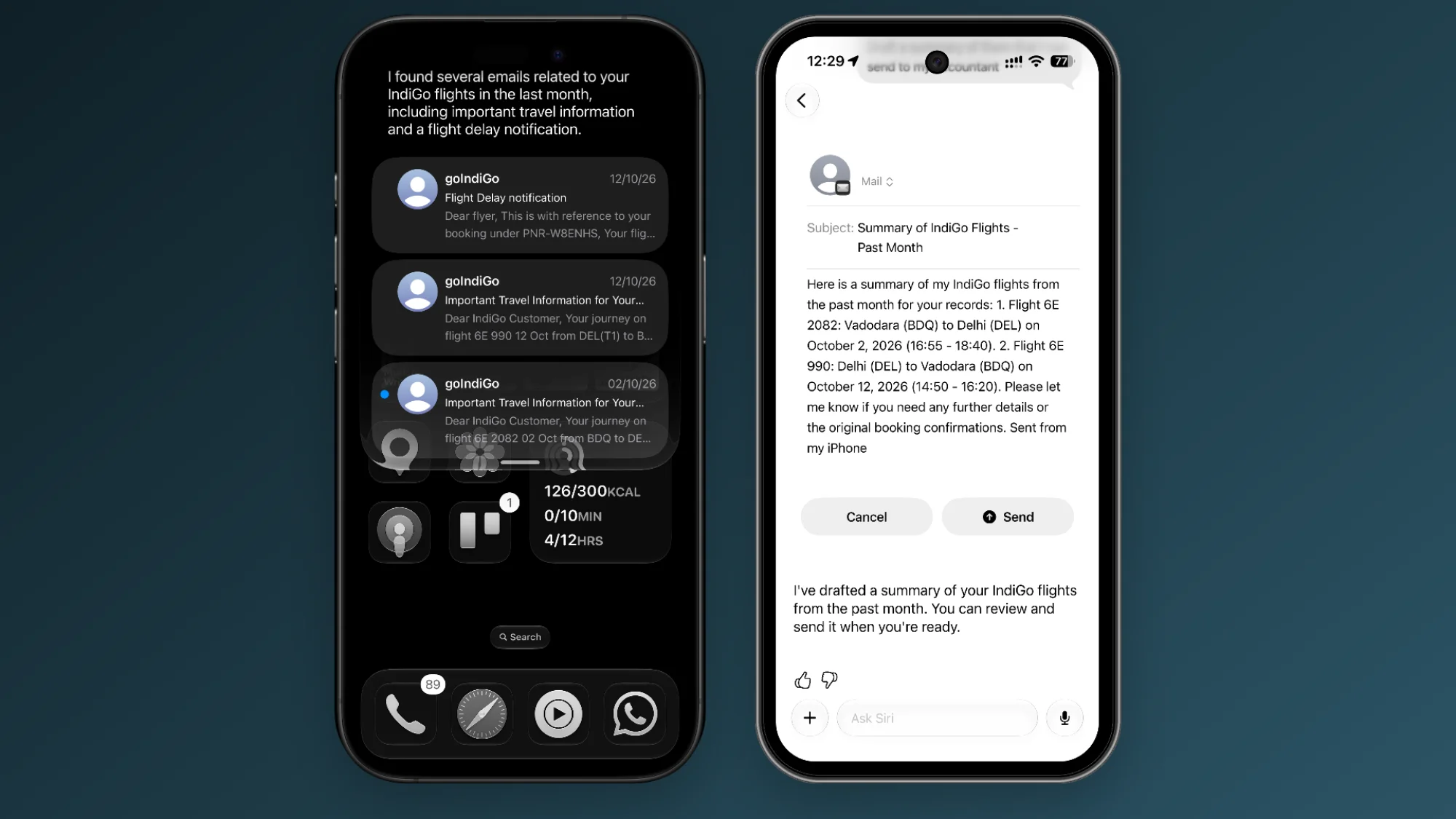
Once Mail has finished indexing local data on an iPhone or Mac, Siri can help locate and act on messages without requiring users to open the app. Requests can describe a message by its context rather than exact sender or subject—for instance, finding last week’s flight emails and sending them to an accountant. Siri can also offer a one-button action for a request such as archiving last month’s Walmart emails. The approval step is useful here: it lets users check the proposed action before the assistant changes their inbox.
Set messages to send without another prompt
Siri may ask for confirmation before completing actions. That extra step can make sense for deleting or archiving information, but it can interrupt a straightforward messaging request. To skip confirmation when sending messages, open Settings > Siri > Responses and enable Automatically Send Messages. It’s a focused setting for people who often dictate messages; the change is worth understanding before relying on Siri to send a request without a final review.
Open camera assistance with Camera Control

On supported iPhones, pressing and holding Camera Control opens Siri’s camera mode. Aim at an object or scene, then tap the Siri icon. After a short wait, an answer appears near the top of the display alongside actions relevant to what the camera sees. Users without Camera Control, or those who prefer another launch point, can add the Siri AI shortcut to the Lock Screen, Control Center, or Action button.
Describe a Shortcut in plain language
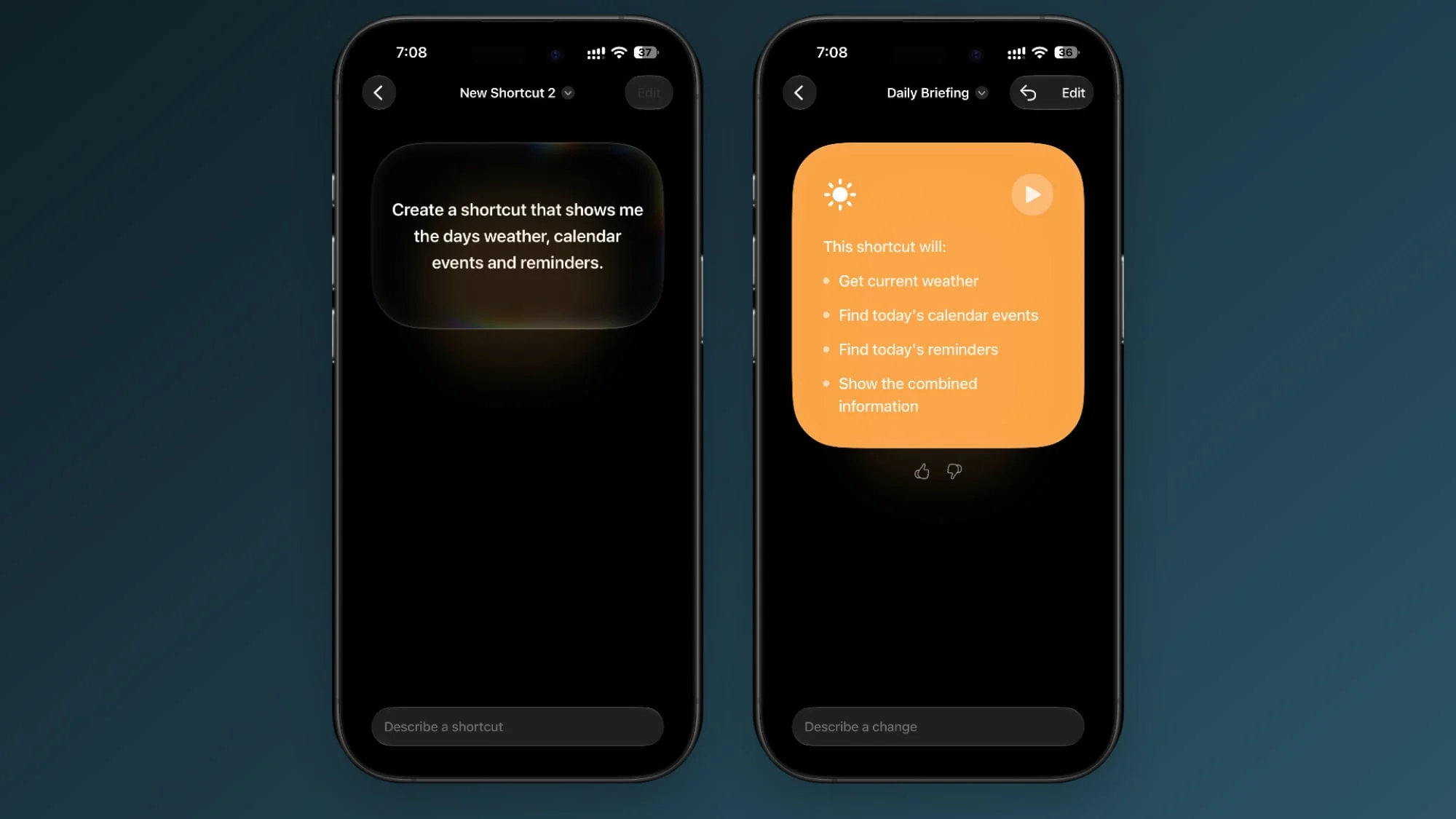
Shortcuts can automate multi-step tasks, though building one often means choosing actions, variables, and their order. Apple’s Describe a shortcut feature in the Shortcuts app lets users explain the desired workflow in natural language. One example is a morning routine that displays the weather, upcoming calendar events, and the day’s to-do list. Another is a Shortcut that converts images in batches and creates notes from a preset template. The feature is aimed at simpler workflows, where translating a request into steps can remove much of the initial setup effort.
Route a harder question to ChatGPT
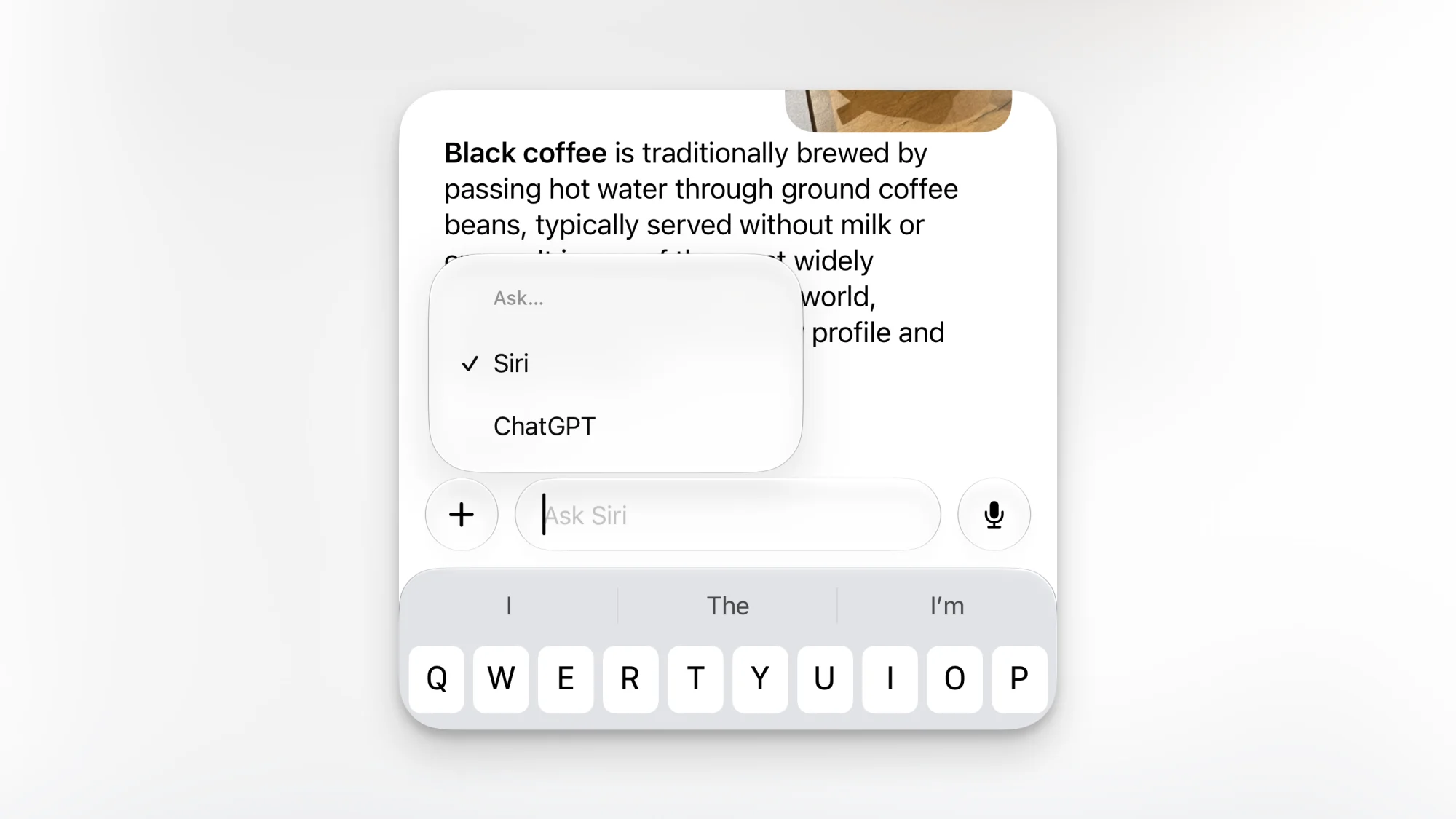
Apple’s own models now power much of Siri AI, but ChatGPT remains available within the assistant. To switch, tap the text field in the Siri app, select Ask, and choose ChatGPT. This gives users a route to another model when Siri’s answer doesn’t meet the need or a question calls for more involved reasoning. Siri can also route a query back to its own models if ChatGPT can’t answer it.
The through line is integration: Siri AI can use the screen, camera, Mail, Photos, Calendar, and Shortcuts as working context. For professionals already using Apple devices, the payoff will depend on how often those actions replace manual searching and data entry. The most useful starting points are the tasks that recur—sorting email, interpreting a schedule, or launching a personal automation—and the assistant’s reach should become clearer as those habits take shape.