Reduce Cloud SQL for SQL Server Storage Costs with Online Database Migration
The useful idea here is that database migration can solve an ongoing operations problem, not just move a system into the cloud. Google Cloud’s Database Migration Service (DMS) supports Cloud SQL for SQL Server as a source. Since DMS can continuously replicate between Cloud SQL instances in the same project, across projects, or across regions, engineers can use it to move workloads while keeping an application online. One practical case: reducing the size of a provisioned disk without accepting hours of downtime.
Why shrink a Cloud SQL disk?
Production databases tend to accumulate storage. Cloud SQL’s automatic storage increase helps protect against outages during traffic spikes, large imports, index maintenance, and temporary staging work. Over time, though, data may be archived or purged, and indexes may be removed. The database can end up occupying far less space than its disk allocation.
Deleting rows doesn’t automatically return disk capacity. SQL Server marks freed space inside data files such as .mdf and .ndf as available for reuse; log truncation similarly frees space inside .ldf transaction log files. The files can still retain their peak size. AUTO_SHRINK can change that behavior, but it’s generally discouraged in production because it can cause severe index fragmentation and add performance overhead.
You can use DBCC SHRINKFILE to release unused space from SQL Server files. That doesn’t reduce the size of the Cloud SQL persistent disk, however. If the database isn’t expected to grow back into the unused allocation soon, shrinking the disk itself may lower ongoing storage costs. That’s especially relevant after moving historical data to cold storage or BigQuery, recovering from a one-off storage spike caused by a runaway transaction or temporary load, or refactoring a database by splitting out tables, removing large indexes, or applying compression.
To check allocated and used space for each database file, run:
SELECT
 DB_NAME() AS [DatabaseName],
 name AS [LogicalName],
 type_desc AS [FileType],
 -- Allocated size on disk (converted from 8KB pages to MB)
 CAST(size / 128.0 AS DECIMAL(18, 2)) AS [AllocatedSize_MB],
 -- Actually used space inside the file
 CAST(FILEPROPERTY(name, 'SpaceUsed') / 128.0 AS DECIMAL(18, 2)) AS [UsedSpace_MB],
 -- Free space left in the allocated file
 CAST((size - FILEPROPERTY(name, 'SpaceUsed')) / 128.0 AS DECIMAL(18, 2)) AS [FreeSpace_MB],
 -- Percentage of allocated space that is used
 CAST((FILEPROPERTY(name, 'SpaceUsed') * 100.0) / size AS DECIMAL(18, 2)) AS [SpaceUsed_Percent]
FROM sys.database_files;
Cloud Monitoring provides two useful metrics for spotting a mismatch between disk allocation and actual use: database/disk/bytes_used, which tracks space consumed by database files and logs, and database/disk/quota, which reports the instance’s provisioned capacity.
Cloud SQL has a built-in storage shrink feature. It’s a reasonable choice when a planned maintenance window fits your workload. The catch is that native shrinking requires downtime proportional to the disk’s total allocated size; on a multi-terabyte disk, that can mean hours offline. If your production SLA can’t absorb that, DMS offers another route: replicate to a new instance with a smaller disk, then cut over after synchronization. The application can remain online during replication, with downtime limited to the cutover.
What DMS replicates
For Cloud SQL for SQL Server, DMS coordinates a synchronization process similar to SQL Server log shipping.
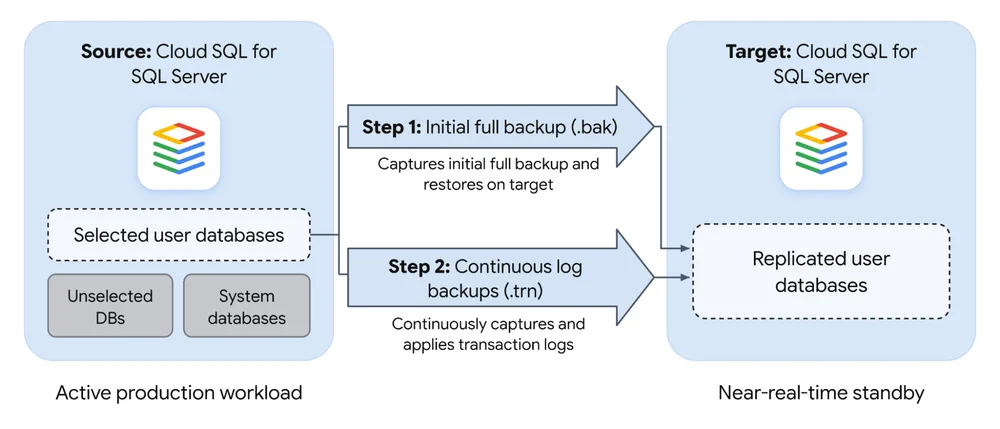
- Initial backup: DMS takes a full backup (.bak) of the selected user databases and restores it on the target.
- Ongoing updates: DMS continually captures and applies transaction log backups (.trn), keeping the target close to the source in near real time.
There’s an important boundary: replication happens at the user database level. Logins, linked servers, SQL Server Agent jobs, and other objects outside those databases don’t automatically move with the data. You’ll need to migrate server-level objects separately.
Right-size the disk with a short cutover
The operational case for DMS is straightforward: build a new Cloud SQL instance with a right-sized disk, replicate to it while production continues, then switch traffic after the final log has applied. This avoids shrinking the existing disk in place during an extended outage. Leave enough capacity on the target for transaction logs and future growth.
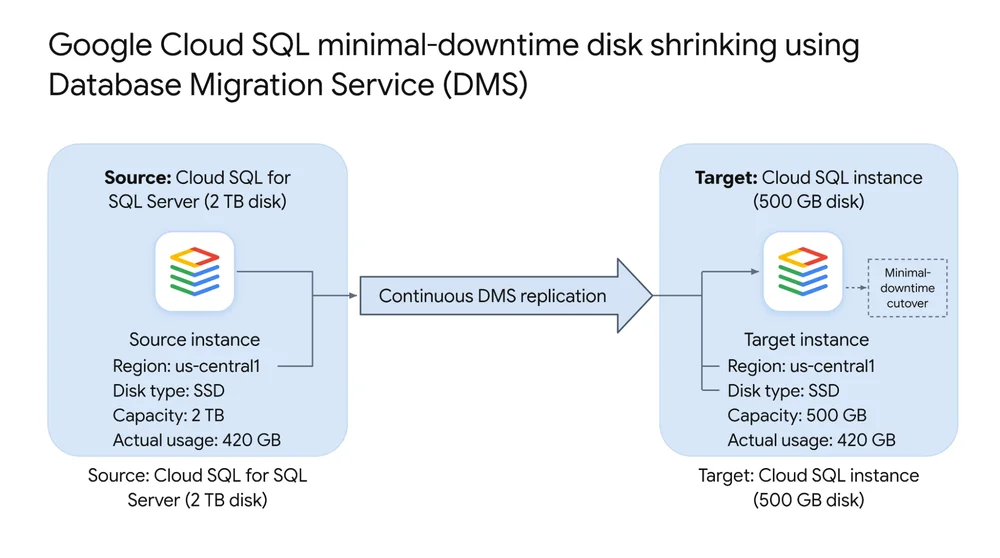
DMS disk-shrink workflow
- Provision a target instance with a smaller disk sized for the workload, including headroom for logs and expected growth.
- Start a continuous DMS job using the existing Cloud SQL instance as the source.
- Allow replication to catch up while the production application continues running.
- For cutover, stop application traffic, wait for the final transaction log to apply, promote the target in DMS, and point the application to the new instance.
Prepare server-level objects and user mappings
A short cutover depends on more than database replication. As the comparison below illustrates, server-level objects and user mappings need attention too; include them in the migration runbook.
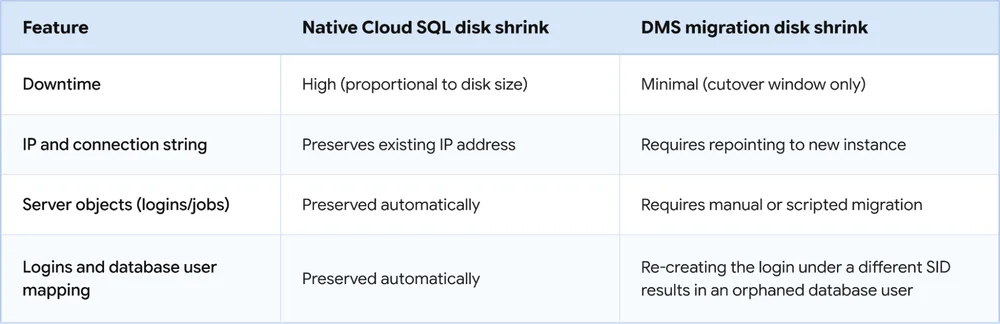
Before cutover: recreate instance objects
DMS doesn’t copy server-level objects, so create them on the destination before switching over.
- Script source logins with
sp_help_revlogin, then recreate them on the target. - Script SQL Server Agent jobs and other server-level objects from the source in SQL Server Management Studio (SSMS). In Object Explorer, right-click an object and choose
Script [Object] as > CREATE To > New Query Window / File.- For SQL Server Agent jobs, found under
SQL Server Agent > Jobs, check that job steps don’t rely on on-premises file paths or unsupported operating-system dependencies. - For linked servers, found under
Server Objects > Linked Servers, use the same scripting process and enable thecloudsql.linked_serversdatabase flag before deploying them. - Script Extended Events sessions from
Management > Extended Events > Sessionsin the same way.
- For SQL Server Agent jobs, found under
- For instances with TDE enabled, export the TDE certificate from the source and import it to the destination before cutover.
- Manually match instance settings on the target, including database flags, Active Directory, and Entra ID configurations.
- If you use Polybase, re-encrypt the DMK so database-scoped credentials work correctly.
After cutover: repair orphaned users
Database users authenticate through SQL Server logins. If a login is missing or misconfigured on the destination, its corresponding database user becomes orphaned. This can happen because the migrated database retains the source login’s SID, while a login created on the target through another method gets a different SID. Using sp_help_revlogin preserves SIDs during login migration; alternative creation methods can leave users orphaned and require manual remapping after the target database comes online.
Connect to each destination user database and run Microsoft’s diagnostic query to find instance-authenticated users without a matching server principal. See the Troubleshoot Orphaned Users Guide for details.
SELECT dp.type_desc, dp.sid, dp.name AS user_name
FROM sys.database_principals AS dp
LEFT JOIN sys.server_principals AS sp ON dp.sid = sp.sid
WHERE sp.sid IS NULL AND dp.authentication_type_desc = 'INSTANCE';
For each user returned, run ALTER USER in that database to link the user to the corresponding Cloud SQL login and retain its permissions:
ALTER USER [user_name] WITH LOGIN = [login_name];A migration tool for ongoing operations
DMS can serve as more than a one-time path into Google Cloud. For SQL Server teams that can’t schedule a long maintenance window, its managed replication pipeline provides a way to move to a smaller disk while keeping the application online until a brief cutover. The storage savings depend on having more provisioned capacity than the workload is likely to need again, so right-sizing still calls for a realistic view of future growth.
To configure Cloud SQL for SQL Server as a DMS source, see the official documentation. If you’re new to SQL Server on Google Cloud, start with the Cloud SQL for SQL Server introduction.