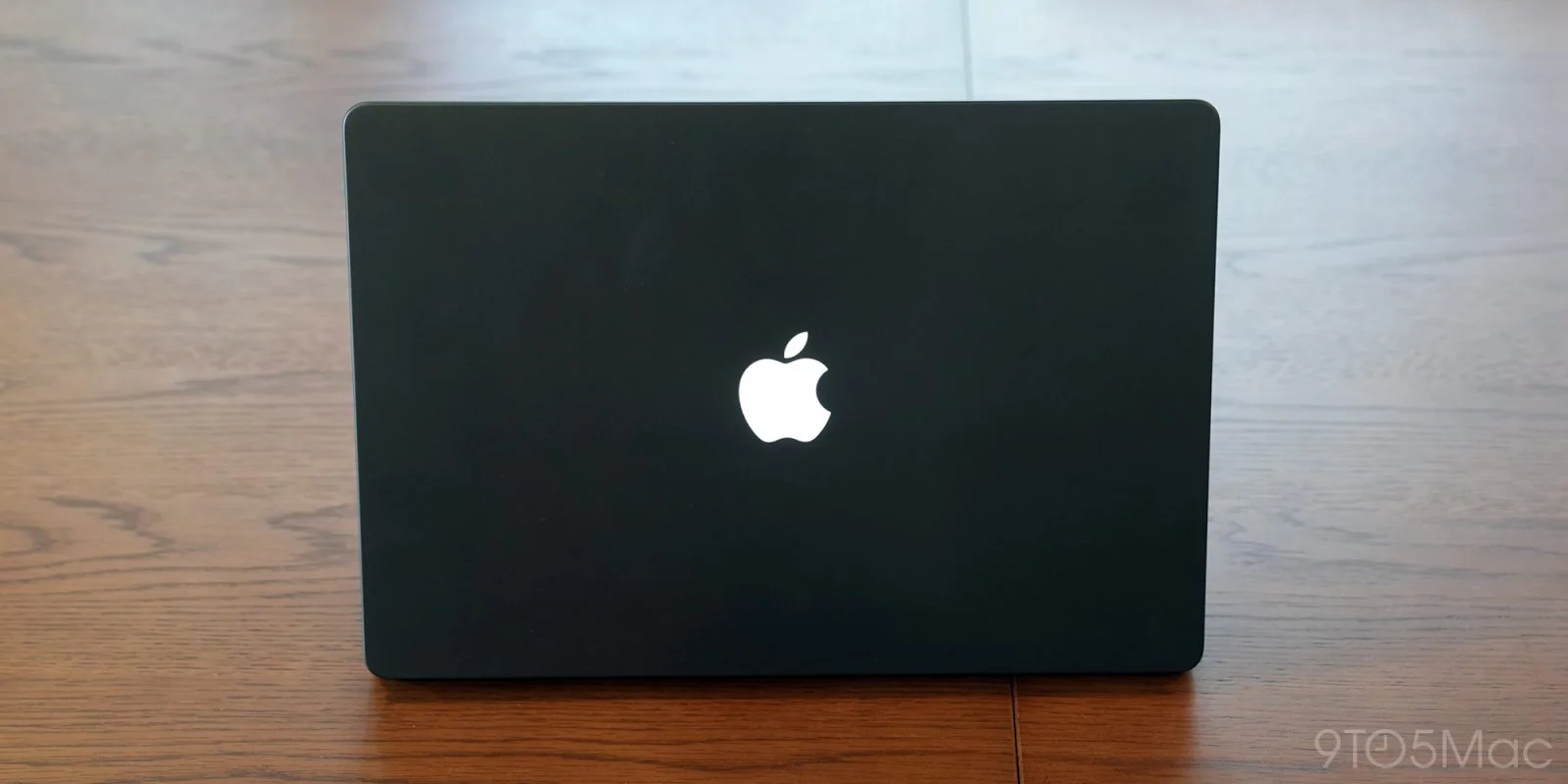
MacBook Pro PROLED XDR Accessories: Chargers, Docks and Desk Setup Picks
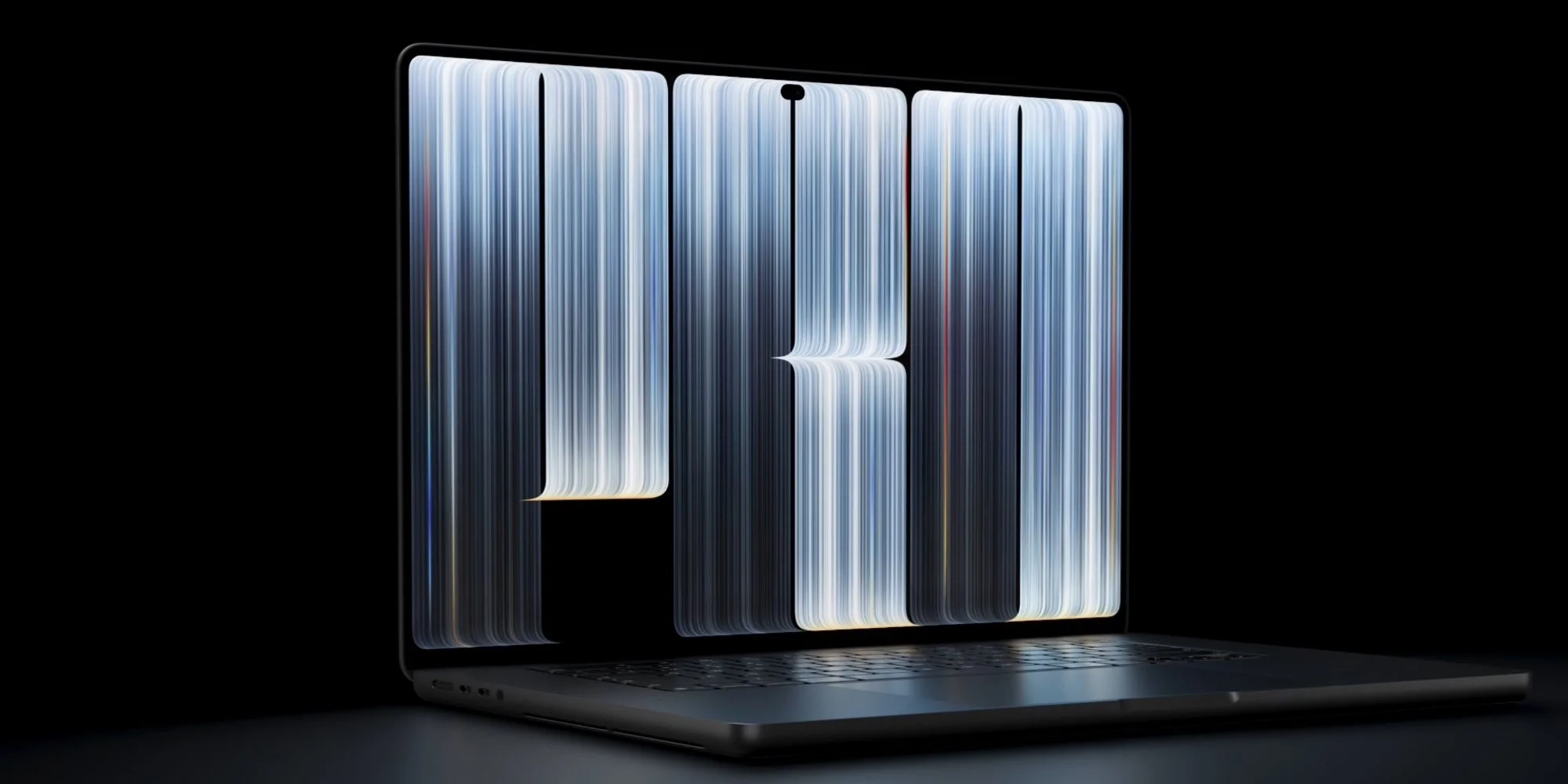
The new MacBook Pro with PROLED XDR goes on sale this Friday. Its built-in ports and trackpad cover plenty of daily work, but a few carefully chosen add-ons can make charging, desk use and travel more convenient. The useful question isn’t how many accessories you can add; it’s which friction you encounter most often. Here are the options that stand out, from faster charging to a more settled desktop setup.
Fast charging for tight schedules
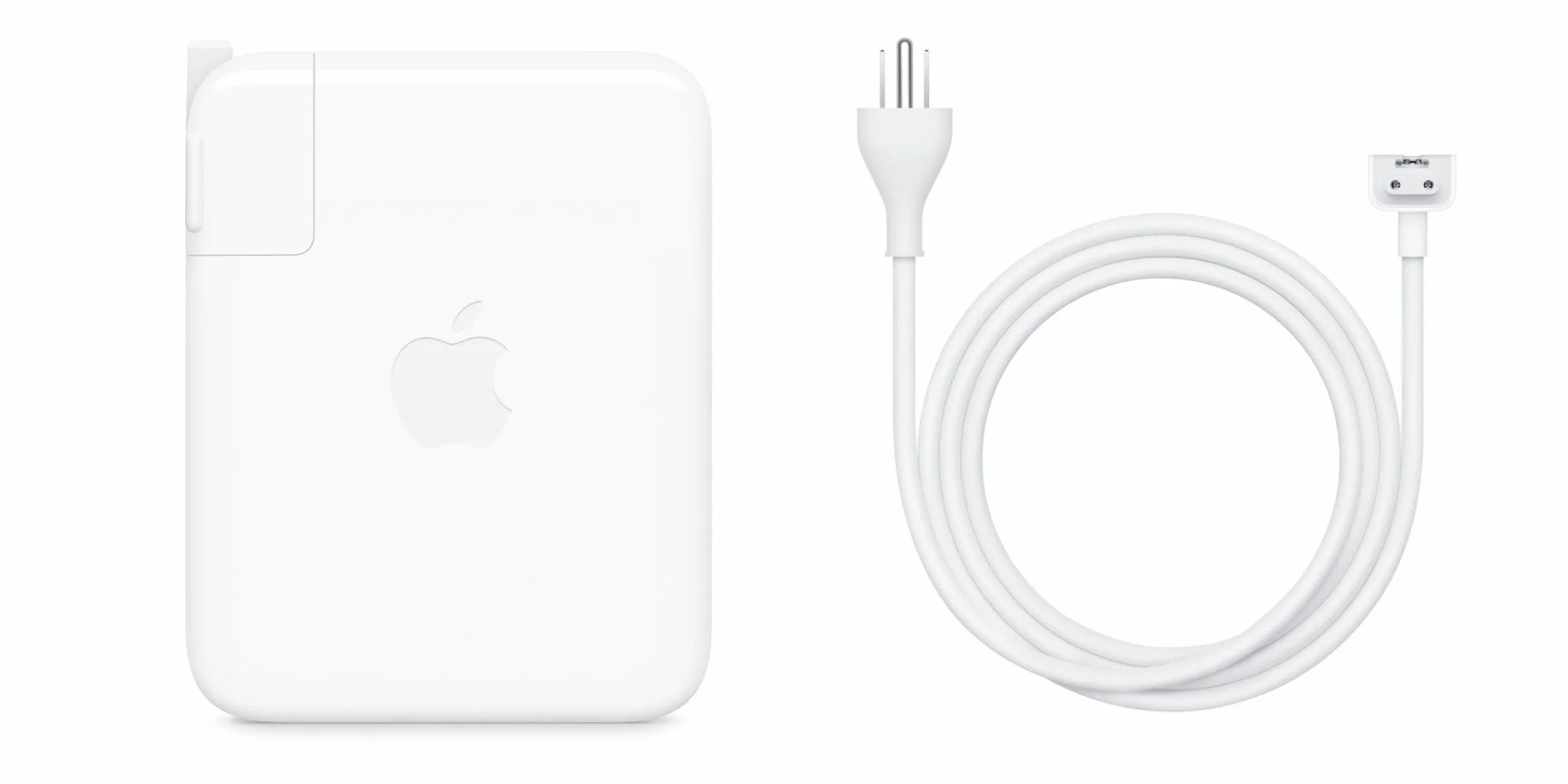
The new model is significantly lighter than its predecessors while retaining their battery life. That makes it easier to carry, but it doesn’t remove the basic constraint of a long workday: even a capable battery eventually needs an outlet. Fast charging helps when there’s only a short break to top up. Apple says the MacBook Pro can reach 50 percent battery in 30 minutes, provided you use a sufficiently powerful adapter.
Apple recommends a 96W Power Adapter for the 14-inch model and a 140W Power Adapter for the 16-inch model. Those recommendations give buyers a straightforward starting point, especially if they want to match the charger to the laptop’s size. For a more flexible setup, the Apple extension cable adds reach when an outlet is awkwardly placed, while Anker’s 100W USB-C adapter offers a lower-cost charging option. Its lower wattage makes checking compatibility with your particular model a sensible step.
- Apple Power Adapter Extension Cable (AC Connector 2): $19
- Anker 100W USB-C fast charging power adapter: $30
Add the ports your desk needs
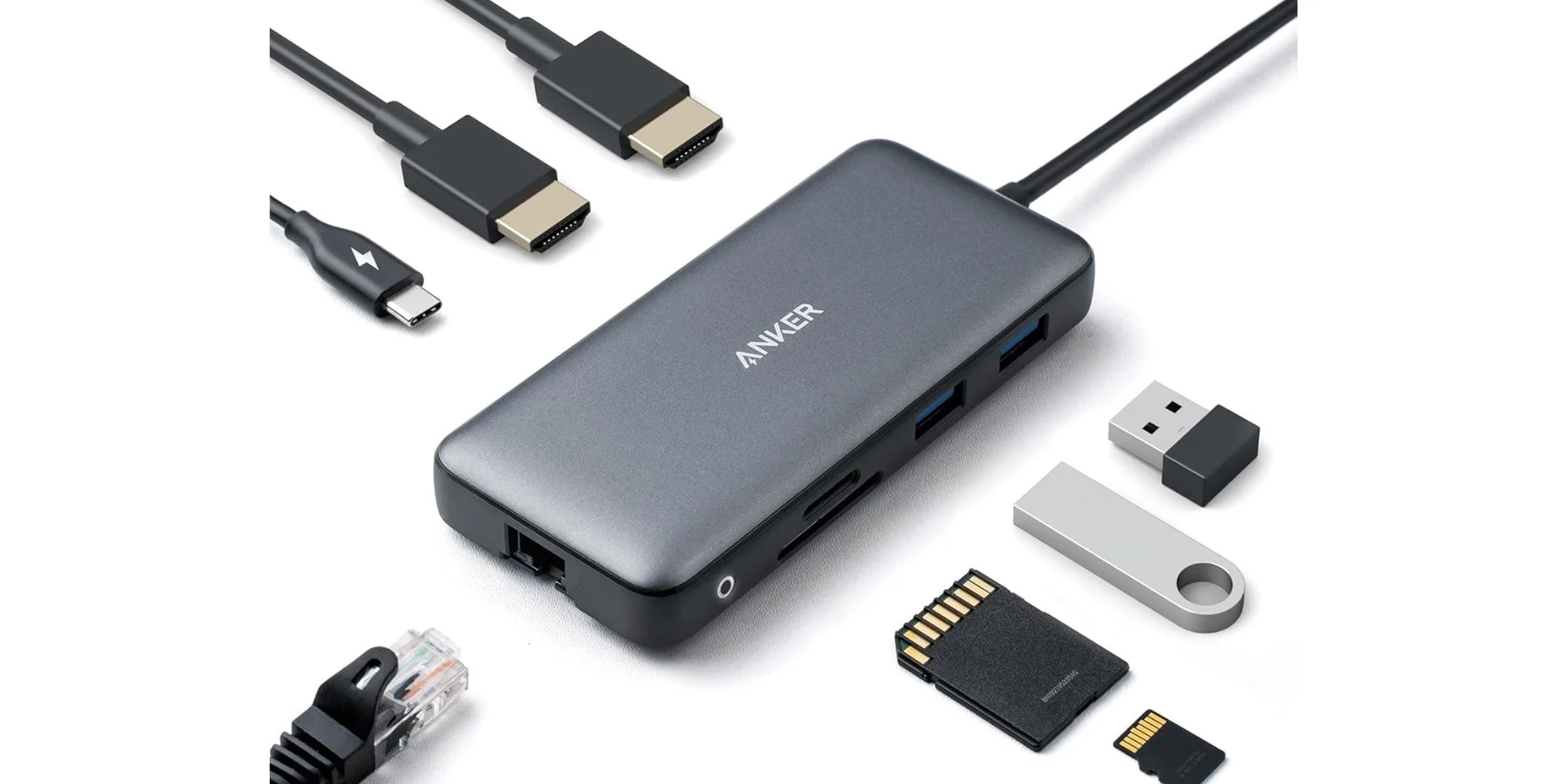
Apple kept the MacBook Pro’s ports in its latest redesign, so a dock isn’t an automatic purchase. It can still make a desk setup simpler, though, particularly if you regularly connect accessories that use different standards. Anker’s eight-port USB-C dock adds Ethernet, USB-A, HDMI and SD connectivity, with several extra ports for peripherals.
That mix can reduce the need to swap adapters as you move between a wired network, a display and removable storage. Here’s the thing: a dock earns its place when it stays connected to the desk and saves repeated small steps. If you only plug in one accessory now and then, the extra box and cable may be harder to justify.
- Anker Docking Station USB-C with Ethernet, HDMI, SD, more: now only $39 (down from $53)
Raise the display for desktop work
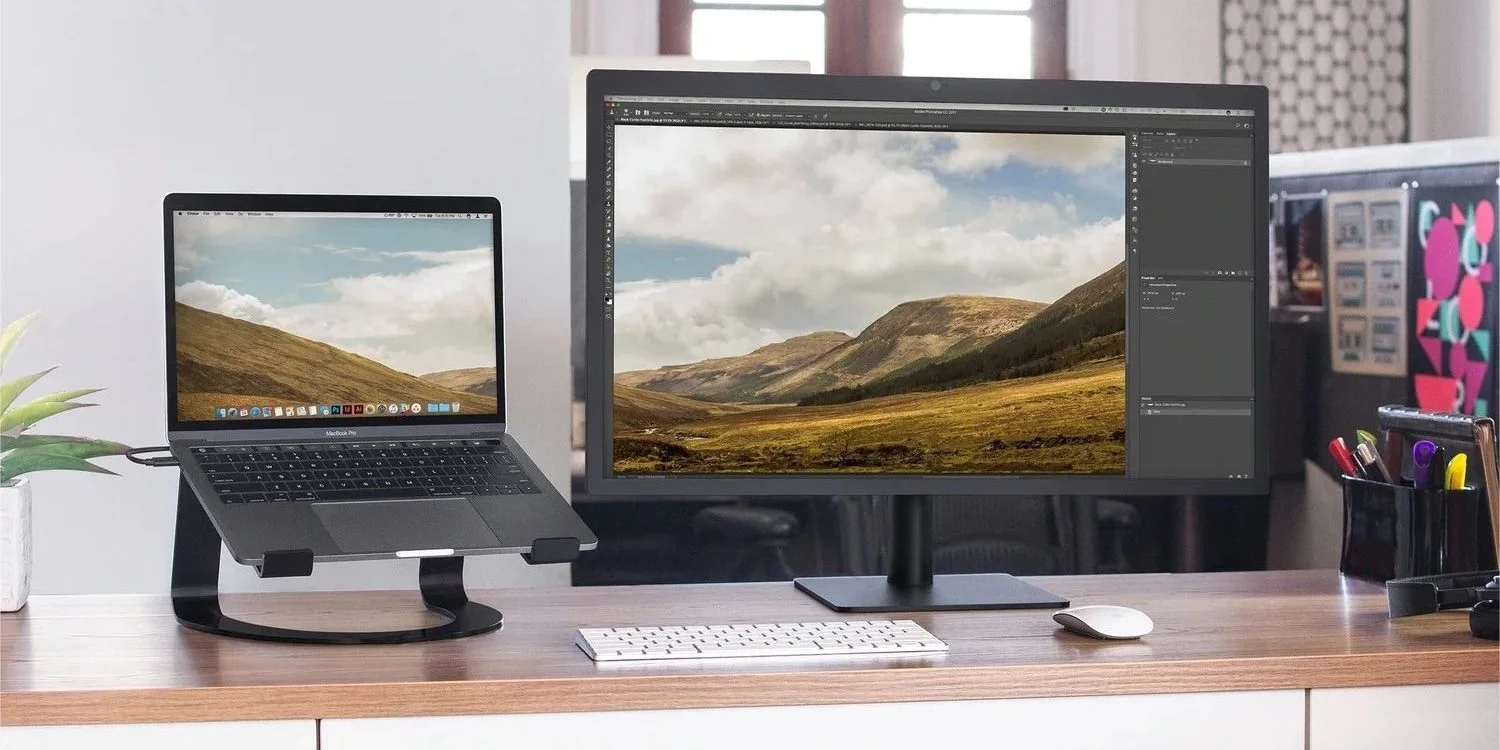
A stand can bring the display closer to eye level when the MacBook Pro is part of a fixed desk setup. Twelve South’s Curve aluminum stand lifts the laptop six inches and uses silicone pads to help keep it in place and protect its finish. The height can make the screen easier to view, though the laptop’s keyboard and trackpad will also sit higher; many people who use a stand for long sessions will prefer a separate keyboard and pointer.
Its spare aluminum design should sit comfortably alongside Apple hardware, but appearance is only part of the case for a stand. The more practical benefit is giving the laptop a fixed position on a desk, especially when it’s connected to an external display. For occasional work away from the desk, a stand is one more item to pack.
Choose a pointer for your workflow
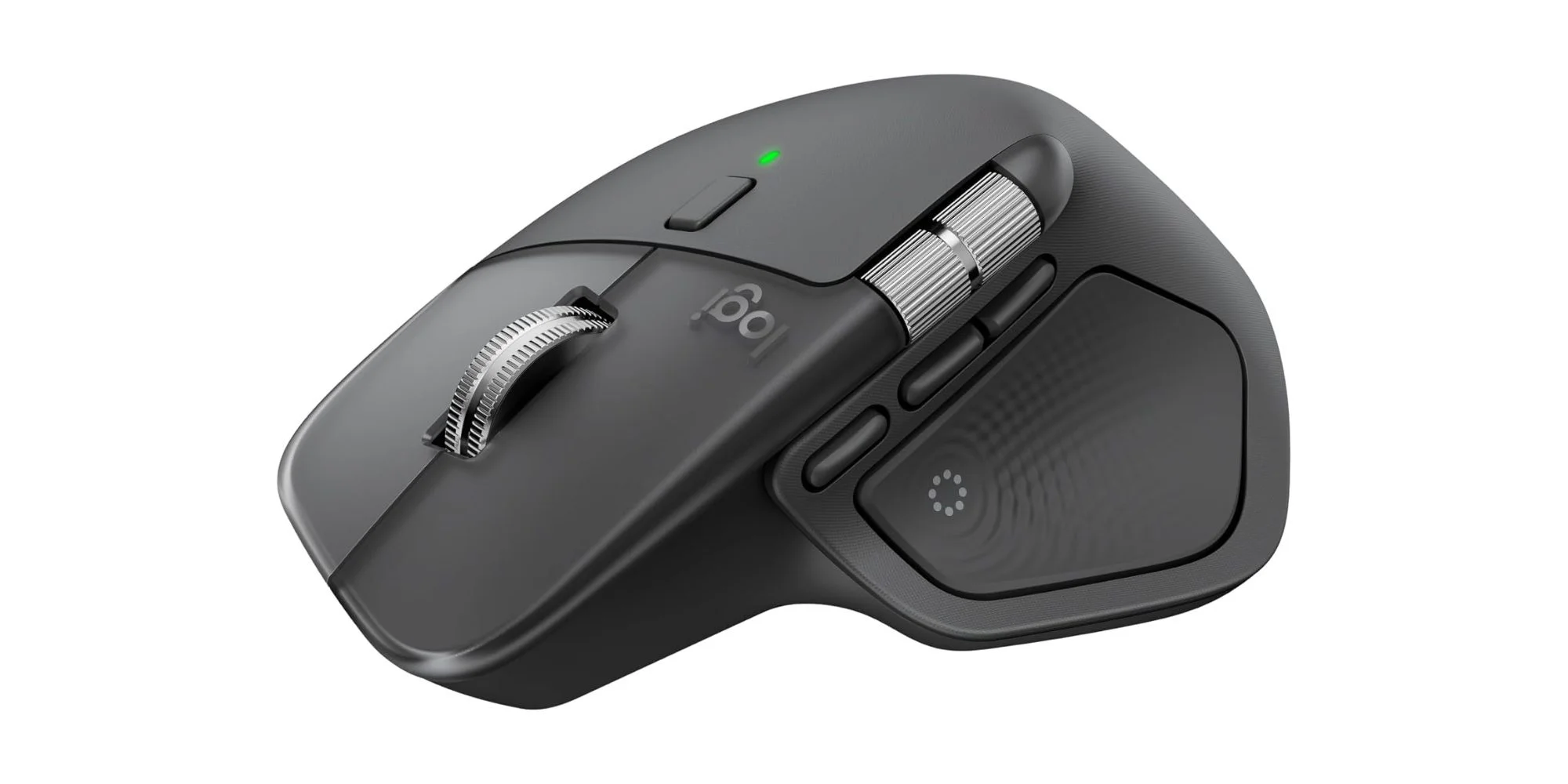
The built-in trackpad is already a strong part of the MacBook Pro experience, so an external pointer is a preference rather than a missing feature. Those who prefer a mouse may want Logitech’s MX Master 4, the successor to the well-liked MX Master 3. It arrived last year and has quickly become a popular option. A mouse can suit work that involves long stretches of pointer movement, but the best choice still depends on how you work and what feels comfortable.
For clamshell use, Apple’s Magic Trackpad is the recommended external trackpad. It keeps gesture controls available when the laptop is closed and connected to a display, preserving a familiar way to navigate macOS at a desk. That can matter to people who rely on trackpad gestures. If you’re working in this space, the choice is less about adding capability than keeping your preferred input method when the laptop screen isn’t in use.
- Logitech MX Master 4 Mouse: $119
- Apple Magic Trackpad: now only $115 (down from $129)
Noise cancellation for focused work
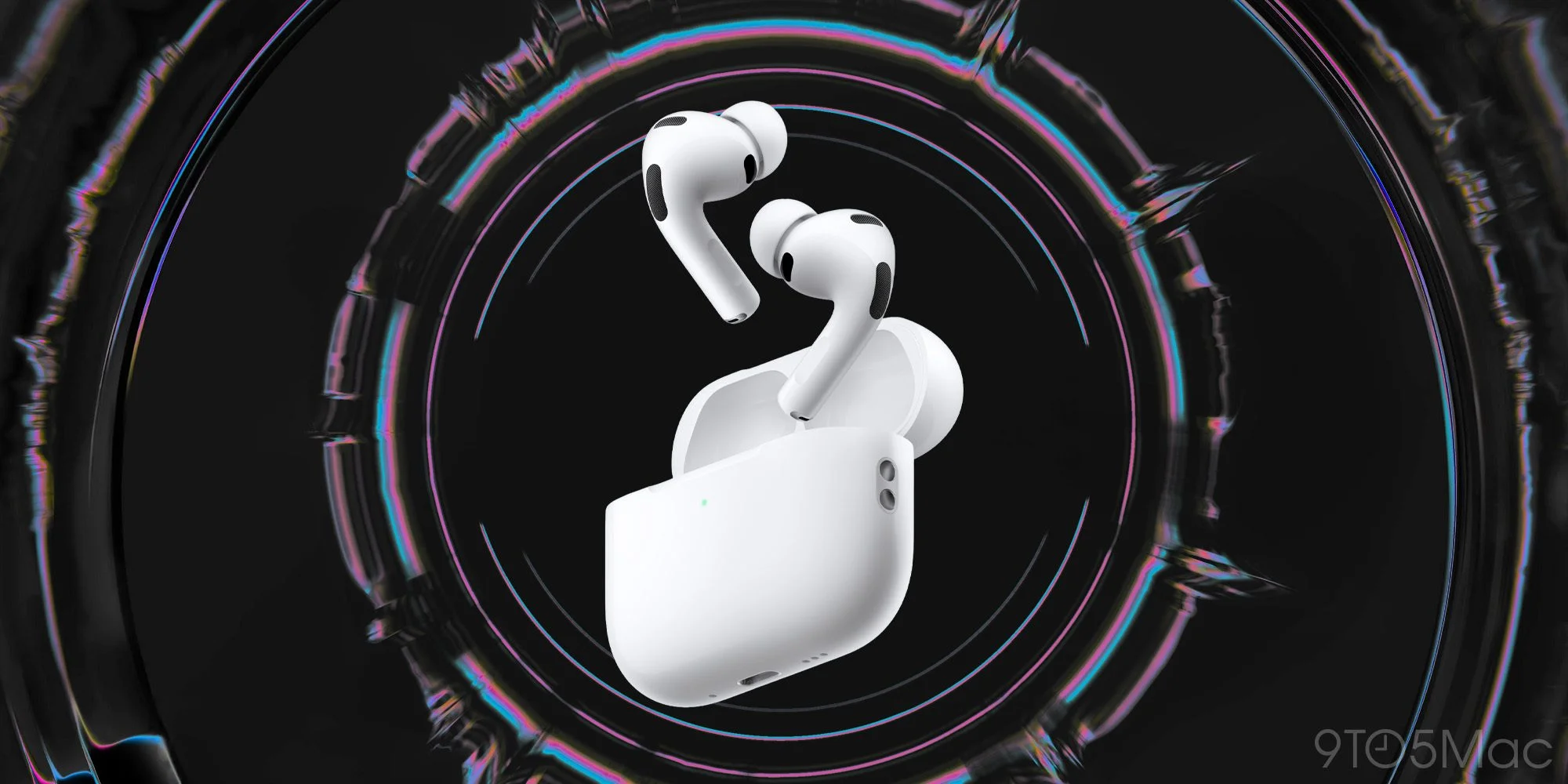
For work in noisy surroundings, the AirPods Pro 3 pair active noise cancellation with Apple device integration across Mac, iPhone and iPad. They’re the top pick in the AirPods range for blocking distractions while moving between devices. That integration is most relevant if you already use several Apple products; for a MacBook Pro owner who works in quiet spaces, the added convenience may be less compelling.
Noise cancellation can make a shared or busy environment easier to manage, but it won’t change the underlying demands of the work. The value here is practical: fewer interruptions from surrounding sound, plus an accessory that can move with you from laptop to phone or tablet.
- AirPods Pro 3: now only $199 (down from $249)
A travel kit for international outlets
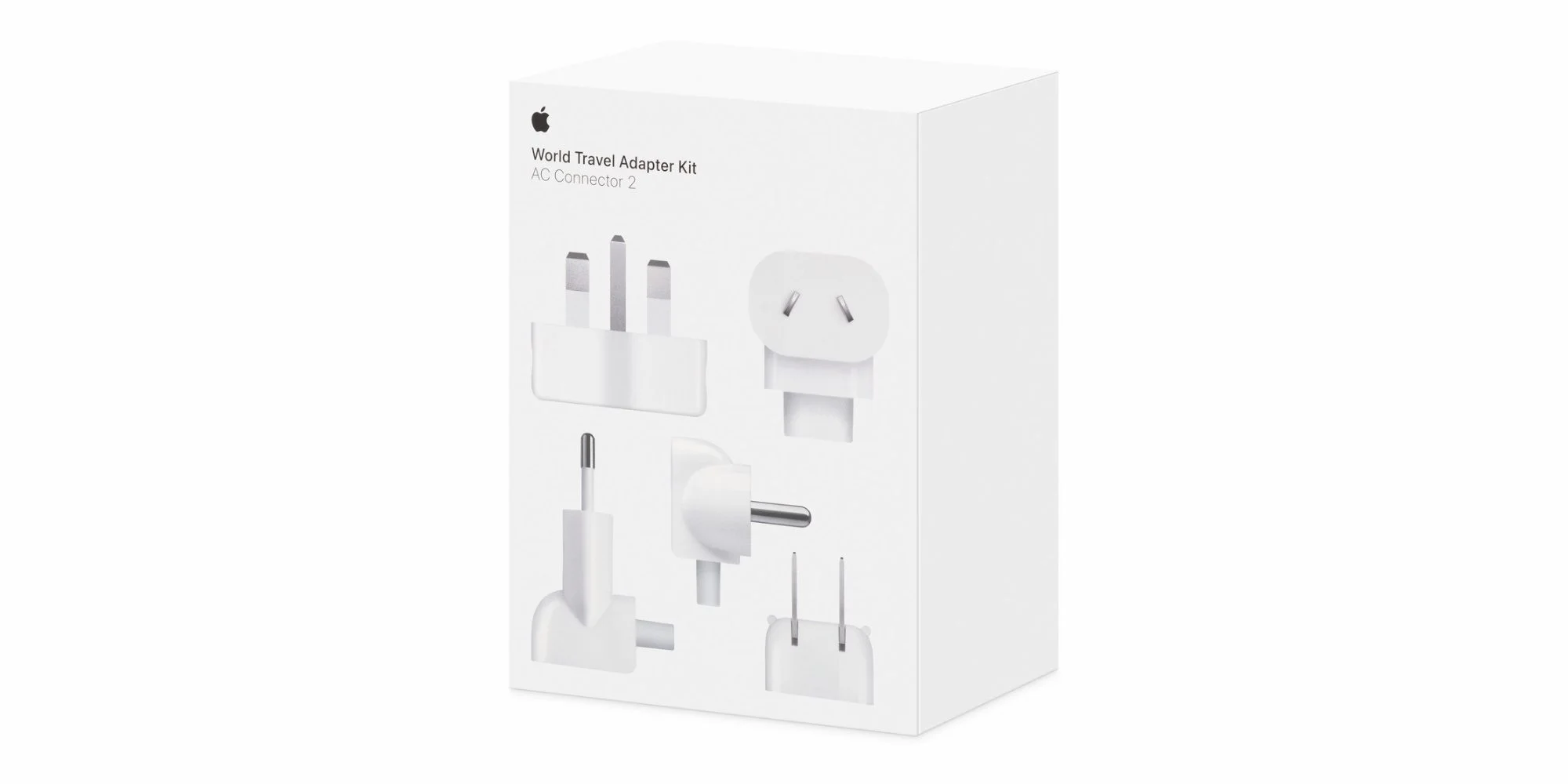
Apple has brought back its World Travel Adapter Kit, which includes interchangeable plugs for five outlet types. For people who travel internationally, the point is to carry a set of compatible plug ends instead of trying to find the right one after arrival. The supported types are:
- Type A: North America, Japan
- Type C: Continental Europe, Brazil
- Type D: India
- Type G: United Kingdom, United Arab Emirates, Saudi Arabia, Singapore
- Type I: Australia, New Zealand
The updated kit works with AC Connector 2 accessories, addressing a compatibility issue with the previous version. That detail is easy to overlook, but compatibility is what determines whether an older travel kit works with newer charging gear. The kit is a useful addition for MacBook Pro owners who regularly travel internationally; for everyone else, it’s a specialized purchase that may spend more time stored away than in use.
More MacBook Pro accessories
For protection, mounting and expanded connectivity, these accessories are also worth a look. The list spans different needs, so it’s best treated as a set of options rather than a bundle every owner should buy:
- tomtoc protective MacBook sleeve bag
- Twelve South BookArc stand
- Satechi SM1 Mechanical Keyboard
- Anker Prime 14-in-1 Thunderbolt 5 Dock
The right setup depends on where you use the MacBook Pro most: a higher wattage adapter helps when time is short, while a stand and dock turn it into a more comfortable desk workstation. A sleeve suits owners who carry the laptop between places, and a keyboard can make sense when the machine stays closed at a desk. Small choices, with different payoffs.
What to prioritize in your setup
The accessories here address distinct situations: charging on a tight schedule, connecting desk equipment, changing the laptop’s working height, choosing a preferred pointer, reducing noise, or handling unfamiliar outlets. Buying by use case keeps the list grounded. A dock won’t help much if you rarely connect peripherals, and travel plugs have little value if your laptop mostly stays in one place.
That said, the strongest case is for solving a repeated annoyance. If charging is the daily bottleneck, start with the adapter and cable. If the MacBook Pro becomes a desktop workstation, consider a dock, stand and external input device as a coordinated setup. What this means for you is simple: match the accessory to the place and routine where you’ll use it, then judge the price against how often it removes a hassle.