Canva Adds Controls to Hide Generative AI Features and Content
Canva is giving Free and Pro users more say over where generative AI appears in their workflow. Two new settings let them hide supported generation features across the app and reduce AI-made templates and design elements in library searches and recommendations. Both controls are free and can be changed at any time. The split matters: someone may want fewer AI creation tools without wanting AI-made assets removed from browsing, or may prefer the reverse. Canva’s approach treats those as separate choices instead of assuming that one broad preference covers both.
Two settings address different parts of the workflow
The first setting switches supported generative AI features on or off across Canva. Users can find it under Profile > Settings > Permissions, then change Enable generative AI features. Turning it off hides those features throughout the app. That gives people a direct way to reduce prompts and entry points for generation while they work, though the description doesn’t suggest that it removes AI from every operation that analyzes or modifies an image.
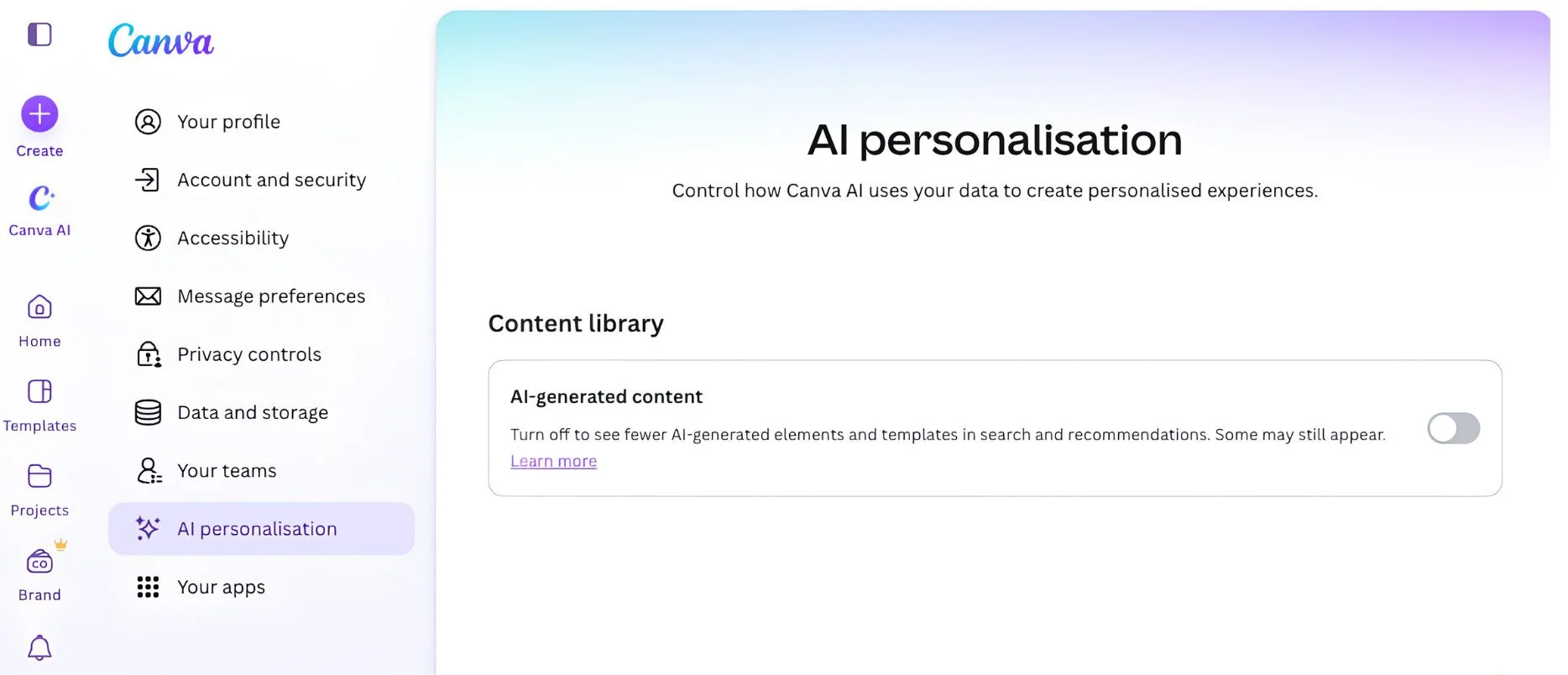
The second setting affects discovery rather than editing: under Profile > Your account > AI personalization, users can choose to see less AI-generated content. Canva says the preference reduces AI-made templates and elements in library results and recommendations. It doesn’t alter designs users have already created. In practical terms, this is a ranking and visibility preference; it changes what Canva surfaces when people browse, rather than rewriting existing files or removing assets from the service.
That distinction gives users more control without treating every AI-assisted operation as content generation. Canva says Background Remover and Magic Grab will continue to work when the generative AI setting is off. Background Remover separates a subject from a photo, while Magic Grab lets users select and reposition an object in an image. Both operate on existing design content, Canva says, and neither adds an AI label to a design’s metadata. The label is reserved for AI-generated content. The distinction is useful, but it also shows why a single “AI off” switch can be misleading: tools that alter existing material and tools that create new material don’t necessarily belong in the same bucket.
More choice for creative teams
Canva says only a small portion of its content library consists of AI-generated material made by the company, including some abstract backgrounds and illustrated graphics. The new browsing preference responds to users who want an easier way to find assets made by people. Canva hasn’t quantified that “small portion” here, so the statement offers a sense of scale without letting users judge the exact balance themselves. Still, even a limited share can affect search results if recommendations repeatedly place those assets in front of users.
The controls also extend individual choice beyond the organization-level AI permissions already available to administrators of Business, Enterprise, Teams, and Education accounts. Canva’s position is that people should decide how AI fits into their creative work. In practice, separating the visibility of generative tools from the presence of AI-made library assets gives users a more precise way to shape that experience while preserving familiar editing features. For teams, that distinction could matter when employees have different preferences but still need to work in the same design environment.
Why the distinction matters
Here’s the thing: a setting that hides generation tools and a setting that reduces AI-made search results answer different user concerns. One is about the actions available during creation; the other is about the material presented as a starting point. Keeping them independent makes the controls easier to match to individual habits, although users will still need to understand what each toggle covers. That’s a reasonable design choice, and more significant than it looks.
If you’re working in this space, the details to watch are the boundaries: which features count as generative, how much the browsing preference changes recommendations, and whether the available controls remain clear as products add new AI functions. Canva’s explanation draws a line around supported generation features and identifies two editing tools that remain available, but it doesn’t spell out every feature affected by the switch. A control is only useful when people can predict its effect.
And yet. Giving users a preference they can change at any time is a practical response to a debate that often gets framed as all or nothing. It lets someone keep ordinary editing operations while reducing exposure to AI generation or AI-made library content. The company’s account of the settings is specific enough to explain their intended roles, but users will have to try them in their own workflows to see how much the change affects their results.
More control over the defaults. That’s the promise; the quality of the experience will depend on how consistently Canva applies the settings across the app.