9 Apple Contacts Tips for Faster Sharing, Cleanup, and Organization
Contacts earns its place on Apple devices through the small shortcuts tucked behind familiar screens. A few gestures can speed up everyday tasks, while Mac tools such as Smart Lists and export options make a large address book easier to manage. The catch is that some of the most useful features are hard to discover.
We may earn a commission from links on this page.
Here are nine practical ways to get more out of Contacts on iPhone, iPad, and Mac.
Find and clean up duplicate entries

Repeated phone numbers and email addresses can leave your address book cluttered. On iPhone, iOS may offer a prompt at the top of the contact list to review duplicates; there’s also a quick way to clear duplicate iCloud contacts from your iPhone. On a Mac, open Contacts and choose Card > Look for Duplicates. The app finds matching entries and lets you merge or delete them.
Select a batch with a gesture
On a Mac, selecting several contacts is straightforward: use Shift or Ctrl with the arrow keys, or click entries while selecting. iPhone and iPad have a less obvious option. Put two fingers on the contact list and swipe up or down to select a run of names. You can scroll, repeat the gesture, and add another batch to the selection. If you regularly make bulk changes on iPhone, this is a useful shortcut to learn.
Share a contact with fewer taps
Sending a contact through the usual share flow lets you choose which details to include, a sensible privacy check when a card contains an address, birthday, nickname, or other personal information. But that extra choice takes time. For a faster text, press and hold a contact’s name in Contacts, tap Copy, then paste it into a conversation in Messages. This works with SMS and iMessage; it doesn’t work with third-party apps such as WhatsApp.
Start chats and calls from a contact card
Contacts can act as a launch point for third-party messaging. On iPhone, open someone’s card and press and hold the message button to see compatible apps, including WhatsApp, Signal, and Telegram. That’s handy if, like me, you don’t give WhatsApp access to your contacts: you can still start a chat from Apple’s Contacts app.
The call button has a similar shortcut. Hold it to choose WhatsApp, Signal, or another available calling app linked to that person’s number.
Delete one contact—or several—quickly
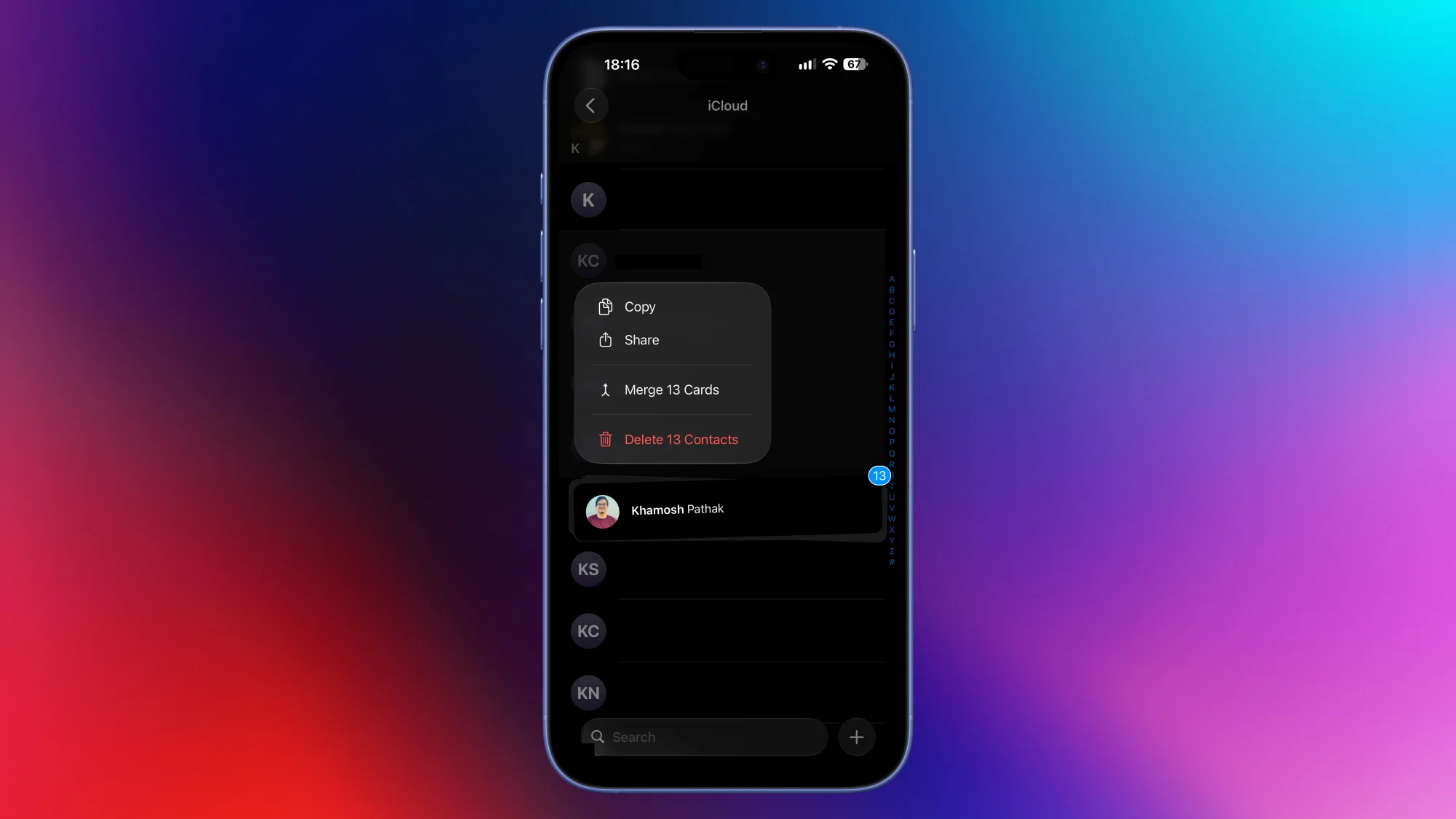
Apple puts a few steps between you and deleting a contact, which can prevent mistakes but feels cumbersome when you already know what you want to remove. On iPhone, press and hold a name, then choose Delete from the popover. To delete a group, first select multiple names with the two-finger swipe, then hold one of the selected contacts and tap Delete X Contacts. The number in the command reflects how many you selected.
Keep an offline copy of your address book
The Mac version of Contacts can export your whole address book as a vCard file. Choose File > Export > Export vCard to save a .vcf file, which you can import into Google Contacts or another service. For a printable record, use File > Export as PDF.
Trim the new-contact template
If you mainly save phone numbers and email addresses, the default Mac contact form may offer more blank fields than you need. Open Contacts and go to Card > Add Field > Edit Template to change which fields appear when you create a new entry.
Make Smart Lists do the sorting
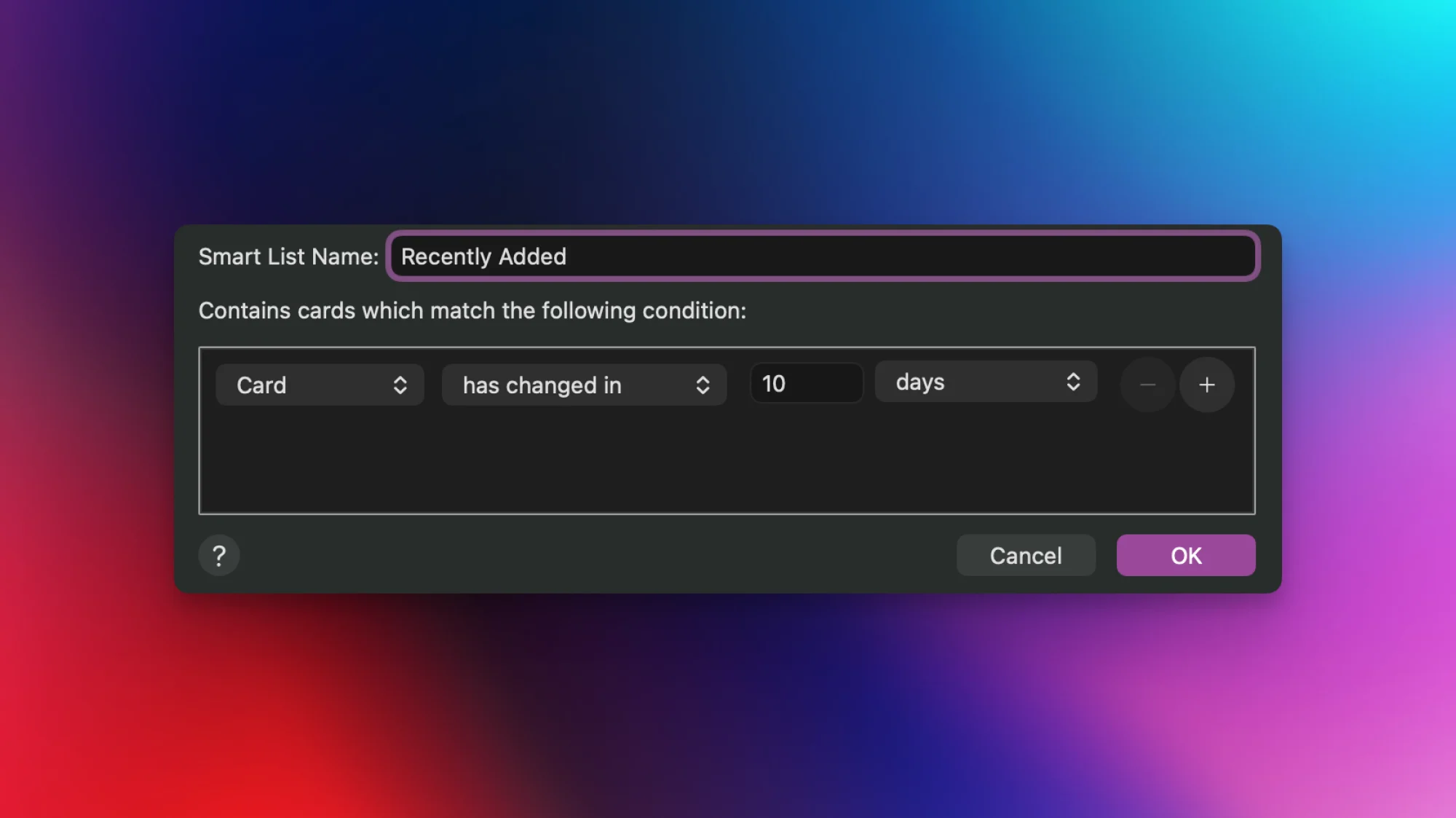
Smart Lists can rescue you when you remember when you added someone but not their name. On a Mac, choose File > New Smart List, set the first menu to Card and the next to has changed in, then enter a time period—10 days, for example. After you click OK, the list in the sidebar shows contacts created or updated during that window. A recently added car salesperson should turn up there.
You can also use Smart Lists to gather people by shared details. If former colleagues’ contact cards include the same company name, make a list based on that company and find the group without searching one name at a time.
Review what your contact card shares
NameDrop makes exchanging contact details between nearby iPhones quick, but speed makes it easy to share more than you meant to. When the full-screen prompt appears, you can choose to share your contact or receive the other person’s. Before using it, open Contacts on your iPhone, tap your name, choose Edit, and remove any details you don’t want to pass along. Consider your profile photo too: an emoji or a work-appropriate headshot may suit public sharing better than a candid picture.